We Have a Winner!
After four rounds of head-to-head playoffs, Blooket has come out on top in our Tech Tools Tournament. Its most serious competition was in Round 1, where GimKit came in a very close second. Perry Township definitely loves our gamified learning!
We saw lots of love for many tools and had a bunch of fun in our tournament. Thank you so much to the over 540 people who participated in our polls.
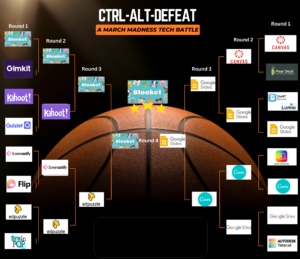
Want to learn more about each tool? You can still click on the image above to open our interactive Slide.




Google Keep: Create notes, checklists, and reminders that are available at all times on any device. Label and sort your notes with tags. Share a note with friends, teachers, and classmates. Pull notes from Keep into a Google Doc or Google Slides presentation.
Google Calendar: Google Calendar allows you to schedule due dates and appointments, as well as plan your time. In a shared calendar, multiple people can view and create events. All Perry Township Staff and Students have access to Google Calendar.
Google Drive & Gmail: We all end up with lot of ‘stuff’ in our Drives and inboxes but there are several tricks that you can use to help you find things more easily.
- Keep your files and emails in folders!
- The search box is your friend! Both Drive and Gmail are searchable. You can search by file type, the name of the person who sent you an email, the date something was created or modified, and many other criteria
- Use clear and simple file names and email subject lines. This makes it much easier to search for your files and messages AND to tell what their contents are without having to open and read them.
The Perry Township School Librarians and Instructional Technology Specialists are proud to share our 13th Annual Holiday Reading and Gift Idea Guide. Whether you’re looking for a great read to borrow over break, a last-minute addition to your holiday wish list, or a gift idea for someone special, there are a wide variety of book, game, and STEM toy suggestions here to consider!
Just click on the image below to access the interactive slideshow:



We have updated our navigation menus to provide a single link to all of the tools that use Single Sign-On through Clever.
Please use the Clever link at the top of the right-hand menus to access the following resources:
- BrainPOP
- Evaluate
- IXL
- McGraw Hill Textbooks
- Naviance
- SAAVAS/Pearson Textbooks
- Waterford
Chromebook Keyboard Shortcuts
You probably knew that you can use Ctrl + C to copy and Ctrl + V to paste in most computer programs, but did you know that there are over 100 different keyboard shortcuts for your Chromebook?
Here are a few of the most useful ones:

* Starred shortcuts also work in the Chrome browser on a PC.